# Basic E-Mail Settings

RackCorp supports mail <u>auto discovery.</u> This is a feature built into modern email clients that allows the email program to obtain the correct mail settings for a user based just on their email address and password.

This works for POP, IMAP and Exchange email options on RackCorp.

If you do not wish to use auto discovery, standard email settings are supported including optional SSL and TLS encryption between the end user and RackCorp mail servers.

## <a name="_Toc531627316"></a><a name="_Toc531131712"></a>Email Settings | POP/IMAP

Choose **POP** <u>OR</u> **IMAP** email server. **IMAP** is generally recommended.

**POP** Email downloads entire emails to your device before they can be viewed and optionally deletes them from the server.

- Pros: Useful for archival, allows inbox and mail management such as zero inbox
- Cons: not ideal for multi devices, slower to look at new emails

**IMAP** downloads a header of the email first so the sender, subject, date can be previewed and keeps all the mail on the server.

- Pros: Lightweight and stores mail on server, ideal for multi device use and low bandwidth  
    Cons: offline viewing of email depends on settings and if entire mail has been downloaded.

### Global <a name="_Toc531627317"></a>Common Settings:

<table id="bkmrk-email-you%40example.ne" style="height: 293.2px;" width="100%"><tbody><tr style="height: 35.4px;"><td style="height: 35.4px;" width="50%">Email

</td><td style="height: 35.4px;" width="50%"><you@example.net>

</td></tr><tr style="height: 35.4px;"><td style="height: 35.4px;" width="50%">Username

</td><td style="height: 35.4px;" width="50%"><you@example.net>

</td></tr><tr style="height: 35.4px;"><td style="height: 35.4px;" width="50%">Password

</td><td style="height: 35.4px;" width="50%">your\_password

</td></tr><tr style="height: 35.4px;"><td style="height: 35.4px;" width="50%">Incoming Server

</td><td style="height: 35.4px;" width="50%">mail.rackcorp.com

</td></tr><tr style="height: 35.4px;"><td style="height: 35.4px;" width="50%">Outgoing Server

</td><td style="height: 35.4px;" width="50%">mail.rackcorp.com

</td></tr><tr style="height: 35.4px;"><td style="height: 35.4px;" width="50%">Outgoing Server Type

</td><td style="height: 35.4px;" width="50%">SMTP

</td></tr><tr style="height: 35.4px;"><td style="height: 35.4px;" width="50%"><span style="color: rgb(224, 62, 45);">Outgoing Server Username</span>

</td><td style="height: 35.4px;" width="50%"><span style="color: rgb(224, 62, 45);"><you@example.net> (or tick ‘same as incoming’) if available</span>

</td></tr><tr style="height: 35.4px;"><td style="height: 35.4px;" width="50%"><span style="color: rgb(224, 62, 45);">Outgoing server password</span>

</td><td style="height: 35.4px;" width="50%"><span style="color: rgb(224, 62, 45);">your\_password</span>

</td></tr><tr style="height: 10px;"><td style="height: 10px;">Webmail

</td><td style="height: 10px;">https://webmail.rackcorp.com

</td></tr></tbody></table>

<p class="callout danger">**<span style="color: rgb(224, 62, 45);">You must fill in the OUTGOING username and password to be able to SEND email from our system.</span>**</p>

<p class="callout info">For Apple MacOS 14.5 sonoma and newer, the OUTGOING userid and password is set automatically by the system if you add your email via the SETTINGS-&gt;ACCOUNTS page and use Mac Mail</p>

---

###  

### USA <a name="_Toc531627317"></a>Common Settings:

<table class="align-center align-left" id="bkmrk-email-you%40example.ne-0" style="border-collapse: collapse; width: 100%;" width="100%"><tbody><tr style="height: 35.4px;"><td style="height: 35.4px; text-align: justify;" width="50%">Email

</td><td style="height: 35.4px; text-align: justify;" width="50%"><you@example.net>

</td></tr><tr style="height: 35.4px;"><td style="height: 35.4px; text-align: justify;" width="50%">Username

</td><td style="height: 35.4px; text-align: justify;" width="50%"><you@example.net>

</td></tr><tr style="height: 35.4px;"><td style="height: 35.4px; text-align: justify;" width="50%">Password

</td><td style="height: 35.4px; text-align: justify;" width="50%">your\_password

</td></tr><tr style="height: 35.4px;"><td style="height: 35.4px; text-align: justify;" width="50%">Incoming Server

</td><td style="height: 35.4px; text-align: justify;" width="50%">mail.us.rackcorp.com

</td></tr><tr style="height: 35.4px;"><td style="height: 35.4px; text-align: justify;" width="50%">Outgoing Server

</td><td style="height: 35.4px; text-align: justify;" width="50%">mail.us.rackcorp.com

</td></tr><tr style="height: 35.4px;"><td style="height: 35.4px; text-align: justify;" width="50%">Outgoing Server Type

</td><td style="height: 35.4px; text-align: justify;" width="50%">SMTP

</td></tr><tr style="height: 35.4px;"><td style="height: 35.4px; text-align: justify;" width="50%">Outgoing Server Username

</td><td style="height: 35.4px; text-align: justify;" width="50%"><you@example.net> (or tick ‘same as incoming’) if available

</td></tr><tr style="height: 35.4px;"><td style="height: 35.4px; text-align: justify;" width="50%">Outgoing server password

</td><td style="height: 35.4px; text-align: justify;" width="50%">your\_password

</td></tr><tr style="height: 10px;"><td style="height: 10px; text-align: justify;">Webmail

</td><td style="height: 10px; text-align: justify;">https://webmail.us.rackcorp.com

</td></tr></tbody></table>

---

###  

### Mongolia <a name="_Toc531627317"></a>Common Settings:

<table id="bkmrk-email-you%40example.ne-1" style="border-collapse: collapse; width: 100%;" width="0%"><tbody><tr style="height: 35.4px;"><td style="height: 35.4px;" width="50%">Email

</td><td style="height: 35.4px;" width="50%"><you@example.net>

</td></tr><tr style="height: 35.4px;"><td style="height: 35.4px;" width="50%">Username

</td><td style="height: 35.4px;" width="50%"><you@example.net>

</td></tr><tr style="height: 35.4px;"><td style="height: 35.4px;" width="50%">Password

</td><td style="height: 35.4px;" width="50%">your\_password

</td></tr><tr style="height: 35.4px;"><td style="height: 35.4px;" width="50%">Incoming Server

</td><td style="height: 35.4px;" width="50%">mail.mn.rackcorp.com

</td></tr><tr style="height: 35.4px;"><td style="height: 35.4px;" width="50%">Outgoing Server

</td><td style="height: 35.4px;" width="50%">mail.mn.rackcorp.com

</td></tr><tr style="height: 35.4px;"><td style="height: 35.4px;" width="50%">Outgoing Server Type

</td><td style="height: 35.4px;" width="50%">SMTP

</td></tr><tr style="height: 35.4px;"><td style="height: 35.4px;" width="50%">Outgoing Server Username

</td><td style="height: 35.4px;" width="50%"><you@example.net> (or tick ‘same as incoming’) if available

</td></tr><tr style="height: 35.4px;"><td style="height: 35.4px;" width="50%">Outgoing server password

</td><td style="height: 35.4px;" width="50%">your\_password

</td></tr><tr style="height: 10px;"><td style="height: 10px;">Webmail

</td><td style="height: 10px;">https://webmail.mn.rackcorp.com

</td></tr></tbody></table>

---

### Krgyz <a name="_Toc531627317"></a>Common Settings:

<table id="bkmrk-email-you%40example.ne-2" style="border-collapse: collapse; width: 100%;" width="0%"><tbody><tr style="height: 35.4px;"><td style="height: 35.4px;" width="50%">Email

</td><td style="height: 35.4px;" width="50%"><you@example.net>

</td></tr><tr style="height: 35.4px;"><td style="height: 35.4px;" width="50%">Username

</td><td style="height: 35.4px;" width="50%"><you@example.net>

</td></tr><tr style="height: 35.4px;"><td style="height: 35.4px;" width="50%">Password

</td><td style="height: 35.4px;" width="50%">your\_password

</td></tr><tr style="height: 35.4px;"><td style="height: 35.4px;" width="50%">Incoming Server

</td><td style="height: 35.4px;" width="50%">mail.kg.rackcorp.com

</td></tr><tr style="height: 35.4px;"><td style="height: 35.4px;" width="50%">Outgoing Server

</td><td style="height: 35.4px;" width="50%">mail.kg.rackcorp.com

</td></tr><tr style="height: 35.4px;"><td style="height: 35.4px;" width="50%">Outgoing Server Type

</td><td style="height: 35.4px;" width="50%">SMTP

</td></tr><tr style="height: 35.4px;"><td style="height: 35.4px;" width="50%">Outgoing Server Username

</td><td style="height: 35.4px;" width="50%"><you@example.net> (or tick ‘same as incoming’) if available

</td></tr><tr style="height: 35.4px;"><td style="height: 35.4px;" width="50%">Outgoing server password

</td><td style="height: 35.4px;" width="50%">your\_password

</td></tr><tr style="height: 10px;"><td style="height: 10px;">Webmail

</td><td style="height: 10px;">https://webmail.kg.rackcorp.com

</td></tr></tbody></table>

---

Choose a type of <u>encryption</u> from **SSL** or **TLS**. **TLS** is recommended for compatibility.

### <a name="_Toc531627318"></a>POP

<table id="bkmrk-pop-with-standard%2Fun" style="width: 100%;" width="100%"><tbody><tr><td style="width: 47.3424%;" width="27%">**POP with SSL**

</td><td style="width: 52.6576%;" width="30%">**POP with TLS or STARTTLS**

</td></tr><tr><td style="width: 47.3424%;" width="27%">Incoming Server Port: 995

Outgoing Server Port: 465

</td><td style="width: 52.6576%;" width="30%">Incoming Server Port: 143

Outgoing Server Port: 25

</td></tr></tbody></table>

### <a name="_Toc531627319"></a>IMAP

<table id="bkmrk-imap-standard%2Funsecu" style="width: 100%;" width="100%"><tbody><tr><td style="width: 47.3424%;" width="27%">**IMAP with SSL**

</td><td style="width: 52.6576%;" width="30%">**IMAP with TLS or STARTTLS**

</td></tr><tr><td style="width: 47.3424%;" width="27%">Incoming Server Port: 993

Outgoing Server Port: 465

</td><td style="width: 52.6576%;" width="30%">Incoming Server Port: 143

Outgoing Server Port: 25

</td></tr></tbody></table>

RackCorp global **webmail** for <u>standard email </u>is available at https://webmail.rackcorp.com

## <a name="_Toc531131714"></a><a name="_Toc531627320"></a>Email Settings | Exchange

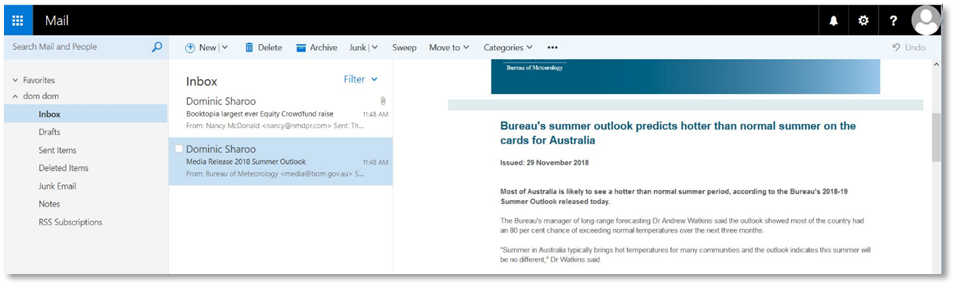
To setup exchange email accounts in your client, the recommended way is to use<u> auto discover </u>with an exchange compatible mail client or use <u>Outlook Web Access</u> (OWA, Microsoft’s implementation of webmail, web based version of the Outlook email client for Exchange Email).

Supply your email address and password to the email client and it will perform the setup process. The setup process on most clients this will also setup Calendar, Tasks and Contacts. On Mobile devices, a device security policy may be applied by the setup process.

The address for OWA varies depending on the region and is available in your Outlook account information

**[https://mail.ex1.rackcorp.com](https://mail.ex1.rackcorp.com)** is the global OWA system

**[https://mail.ex1.rackcorp.mn](https://mail.ex1.rackcorp.mn)** is the Mongolian OWA system

**mail.ex1.rackcorp.com** is the primary RackCorp Exchange server if manual configuration is desired
![](https://wiki.rackcorp.com/uploads/images/gallery/2022-06/ZHPKXwY3RDPMgbVv-embedded-image-xhzocrul.png)

<a name="_Toc27488118"></a>Figure 1 Outlook Web Access (OWA) webmail on RackCorp