# Security Token How-To

### <span style="font-size: 16pt; font-family: Calibri,sans-serif; color: #2e75b5; background-color: transparent; font-weight: 400; font-style: normal; font-variant: normal; text-decoration: none; vertical-align: baseline; white-space: pre-wrap;">1. Choose user</span><span style="font-weight: normal;"> </span>

Log into the portal using your username and password and navigate to **ADMINISTRATION** -&gt; **MY DETAILS**

[![image-1637237370427.png](https://wiki.rackcorp.com/uploads/images/gallery/2021-11/scaled-1680-/image-1637237370427.png)](http://wiki.rackcorp.com/uploads/images/gallery/2021-11/image-1637237370427.png)

Click on **MY DETAILS**. The **CLIENTS AND USERS PAGE** is displayed.

[![image-1637238289496.png](https://wiki.rackcorp.com/uploads/images/gallery/2021-11/scaled-1680-/image-1637238289496.png)](http://wiki.rackcorp.com/uploads/images/gallery/2021-11/image-1637238289496.png)

Click **USERS** to display the assigned users under your **CLIENT** (customer) account, and select a **USER** to edit

[![image-1637238745321.png](https://wiki.rackcorp.com/uploads/images/gallery/2021-11/scaled-1680-/image-1637238745321.png)](http://wiki.rackcorp.com/uploads/images/gallery/2021-11/image-1637238745321.png)

---

### <span style="font-size: 16pt; font-family: Calibri,sans-serif; color: #2e75b5; background-color: transparent; font-weight: 400; font-style: normal; font-variant: normal; text-decoration: none; vertical-align: baseline; white-space: pre-wrap;">2. Find token link</span><span style="font-weight: normal;"> </span>

Note your user details, there should be a **SECURITY TOKEN** link visible ready to be used for the first time.

[![image-1637237366342.png](https://wiki.rackcorp.com/uploads/images/gallery/2021-11/scaled-1680-/image-1637237366342.png)](http://wiki.rackcorp.com/uploads/images/gallery/2021-11/image-1637237366342.png)

---

### <span style="font-size: 16pt; font-family: Calibri,sans-serif; color: #2e75b5; background-color: transparent; font-weight: 400; font-style: normal; font-variant: normal; text-decoration: none; vertical-align: baseline; white-space: pre-wrap;">3. Security token setup</span><span style="font-weight: normal;"> </span>

The security token setup window is displayed where you can generate your key to add to your desired authenticator application.

[![image-1637237513447.png](https://wiki.rackcorp.com/uploads/images/gallery/2021-11/scaled-1680-/image-1637237513447.png)](http://wiki.rackcorp.com/uploads/images/gallery/2021-11/image-1637237513447.png)

### <span style="font-size: 16pt; font-family: Calibri,sans-serif; color: #2e75b5; background-color: transparent; font-weight: 400; font-style: normal; font-variant: normal; text-decoration: none; vertical-align: baseline; white-space: pre-wrap;">4. Connect TOTP Seed</span><span style="font-weight: normal;"> </span>

Once the **Generate** button is pressed, a TOTP Seed key and a Google Authenticator key are displayed. For convivence, a QR code is generated that can be scanned by an authenticator app.

[![image-1637237518553.png](https://wiki.rackcorp.com/uploads/images/gallery/2021-11/scaled-1680-/image-1637237518553.png)](http://wiki.rackcorp.com/uploads/images/gallery/2021-11/image-1637237518553.png)

[![image-1637237347612.png](https://wiki.rackcorp.com/uploads/images/gallery/2021-11/scaled-1680-/image-1637237347612.png)](http://wiki.rackcorp.com/uploads/images/gallery/2021-11/image-1637237347612.png)

<p class="callout info">We strongly recommend that a separate physical device such as a phone, tablet or hardware key be used for multi factor authentication. </p>

Google authenticator for mobile devices can scan the generated QR code using the device camera to retrieve the token key and setup your authentication.

For desktop authenticators such as a YubiKey hardware key, a screen capture function is available where it can capture the generated displayed QR code from the screen.

Otherwise for applications such as WinAuth you will need to copy and paste the URL to the QR code image or manually input the key code into the authenticator.

<p class="callout warning">Once the key generator window is closed, your keys are no longer accessible using this function and need to be regenerated and you are returned to your user details.</p>

---

### <span style="font-size: 16pt; font-family: Calibri,sans-serif; color: #2e75b5; background-color: transparent; font-weight: 400; font-style: normal; font-variant: normal; text-decoration: none; vertical-align: baseline; white-space: pre-wrap;">5. Performance check</span><span style="font-weight: normal;"> </span>

Once your authenticator is setup, it is advisable to test it before setting your user preferences to enforce Two-Factor Authentication on login, should the key be wrong technical support will need to reset the users access.

Navigate to **POWER** and click **LOGOUT**

[![image-1637238969363.png](https://wiki.rackcorp.com/uploads/images/gallery/2021-11/scaled-1680-/image-1637238969363.png)](http://wiki.rackcorp.com/uploads/images/gallery/2021-11/image-1637238969363.png)
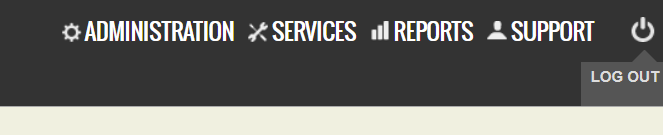
You are returned to the RackCorp portal login at portal.rackcorp.com or your company's white label link

[![image-1637239058915.png](https://wiki.rackcorp.com/uploads/images/gallery/2021-11/scaled-1680-/image-1637239058915.png)](http://wiki.rackcorp.com/uploads/images/gallery/2021-11/image-1637239058915.png)
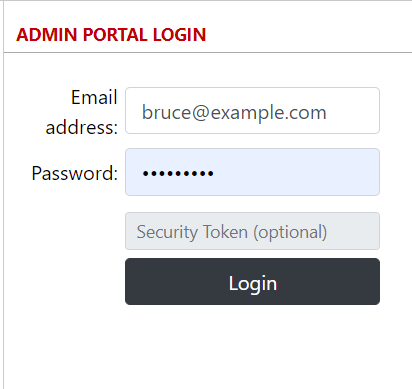
At this step, using your new authenticator to generate the Security Token and input it into the field and login, log back into the portal.

Should this be successful progress to step **6**. otherwise check your authenticator for most current code or contact RackCorp Technical Support.

---

### <span style="font-size: 16pt; font-family: Calibri,sans-serif; color: #2e75b5; background-color: transparent; font-weight: 400; font-style: normal; font-variant: normal; text-decoration: none; vertical-align: baseline; white-space: pre-wrap;">6. Configure security token for a user</span><span style="font-weight: normal;"> </span>

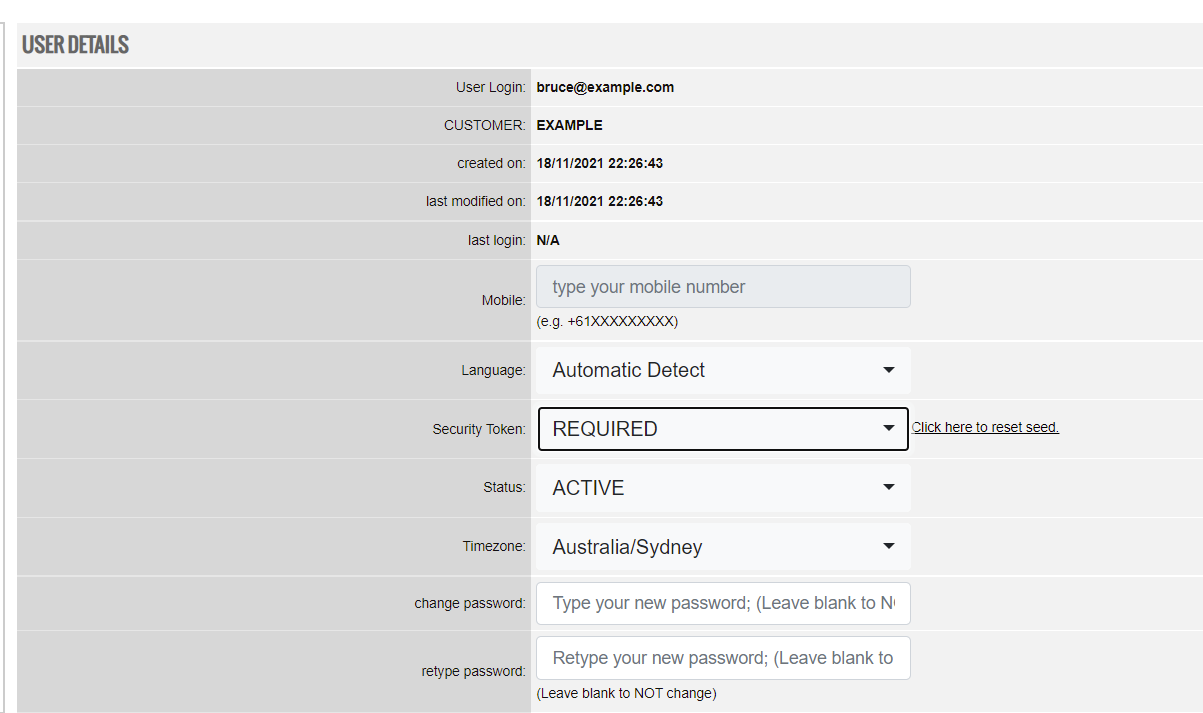
Should you login successfully after configuring 2FA, The final step to Security Token setup is to select whether two factor authentication is mandatory required or not on login by selecting **REQUIRED** or **NOT REQUIRED**.

[![image-1637237332766.png](https://wiki.rackcorp.com/uploads/images/gallery/2021-11/scaled-1680-/image-1637237332766.png)](http://wiki.rackcorp.com/uploads/images/gallery/2021-11/image-1637237332766.png)
---

### <span style="font-size: 16pt; font-family: Calibri,sans-serif; color: #2e75b5; background-color: transparent; font-weight: 400; font-style: normal; font-variant: normal; text-decoration: none; vertical-align: baseline; white-space: pre-wrap;">7. Final test</span><span style="font-weight: normal;"> </span>

Perform a final test of your new 2FA settings. As per step **5,** log out of the RackCorp Portal and then login using your newly setup Two Factor Authentication in addition to your username and password.

You should have be able to login successfully and can continue using our services.