# Virtual Networking - VLANs in the Cloud

RackCorp’s Cloud platform supports fully customisable interworking for your virtual machines; with regards to customisable VLANs both tagged and untagged, and definable IPv4 and IPv6 subnets.  
  
Since the RackCorp cloud platform supports a ‘many customers can have many sub customers hierarchy, as a reseller or system manager<span style="mso-spacerun: yes;"> </span>can define custom networks for each<span style="mso-spacerun: yes;"> </span>customers private clouds very easily.  
  
Once your VLANs and IP subnets are setup, these can be tied into your VMs via up to 3 virtual NICs. No end user software environment configuration is necessary.

![](https://wiki.rackcorp.com/uploads/images/gallery/2023-08/OBX3Ay1G4irXOqW2-embedded-image-w8dkd21j.png)

<p class="callout info"><span class="Heading2Char"><span style="font-size: 13.0pt; line-height: 107%; mso-ansi-language: EN-AU; mso-fareast-language: EN-US; mso-bidi-language: AR-SA;">VLAN and IP subnets are accessed via the SERVICES -&gt; NETWORK menu</span></span></p>

---

### Add a new VLAN

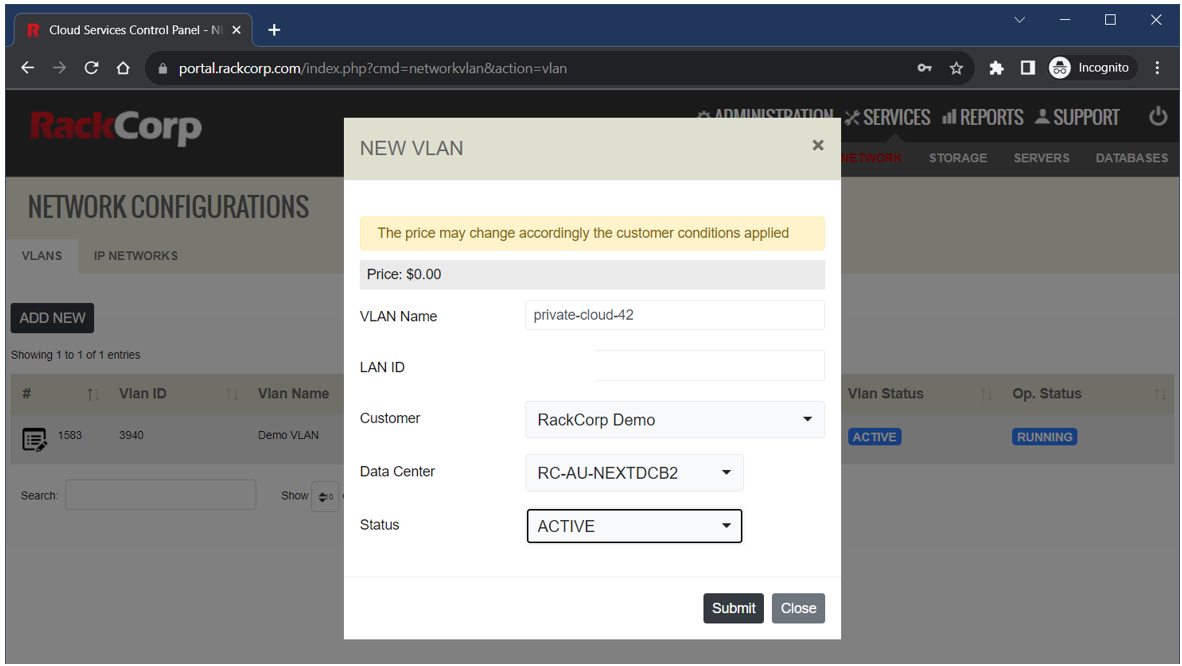
<span class="Heading2Char"><span style="font-size: 13.0pt; line-height: 107%; mso-ansi-language: EN-AU; mso-fareast-language: EN-US; mso-bidi-language: AR-SA;"><span style="font-size: 11.0pt; line-height: 107%; font-family: 'Calibri',sans-serif; mso-ascii-theme-font: minor-latin; mso-fareast-font-family: Calibri; mso-fareast-theme-font: minor-latin; mso-hansi-theme-font: minor-latin; mso-bidi-font-family: 'Times New Roman'; mso-bidi-theme-font: minor-bidi; mso-ansi-language: EN-AU; mso-fareast-language: EN-US; mso-bidi-language: AR-SA;">Click Add New on the VLANs tab an fill in the form appropriately.<span style="mso-spacerun: yes;"> </span></span></span></span>

<p class="callout success"><span class="Heading2Char"><span style="font-size: 13.0pt; line-height: 107%; mso-ansi-language: EN-AU; mso-fareast-language: EN-US; mso-bidi-language: AR-SA;"><span style="font-size: 11.0pt; line-height: 107%; font-family: 'Calibri',sans-serif; mso-ascii-theme-font: minor-latin; mso-fareast-font-family: Calibri; mso-fareast-theme-font: minor-latin; mso-hansi-theme-font: minor-latin; mso-bidi-font-family: 'Times New Roman'; mso-bidi-theme-font: minor-bidi; mso-ansi-language: EN-AU; mso-fareast-language: EN-US; mso-bidi-language: AR-SA;">Leave LAN ID field blank unless you have been given a specific LAN ID to use by RackCorp support</span></span></span></p>

[![image.png](https://wiki.rackcorp.com/uploads/images/gallery/2023-08/scaled-1680-/SVKJmZznJ4PqdkQl-image.png)](https://wiki.rackcorp.com/uploads/images/gallery/2023-08/SVKJmZznJ4PqdkQl-image.png)
![](https://wiki.rackcorp.com/uploads/images/gallery/2023-08/qZp5uOnFjwtbnpU1-embedded-image-3mb4lquq.png)

---

### Add a new IP Network

  
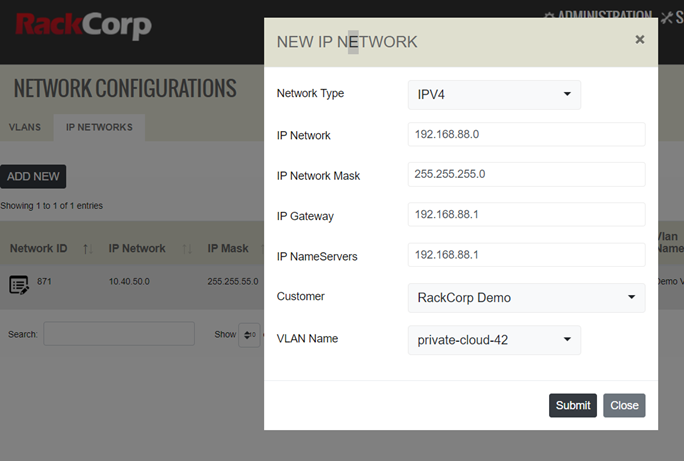
Next, use the Add new IP network to add a new subnet to your account. Take care to assign it to your newly created desired VLAN.
![](https://wiki.rackcorp.com/uploads/images/gallery/2023-08/QyDx2AvbyEEnKwSg-embedded-image-csvst9ks.png)

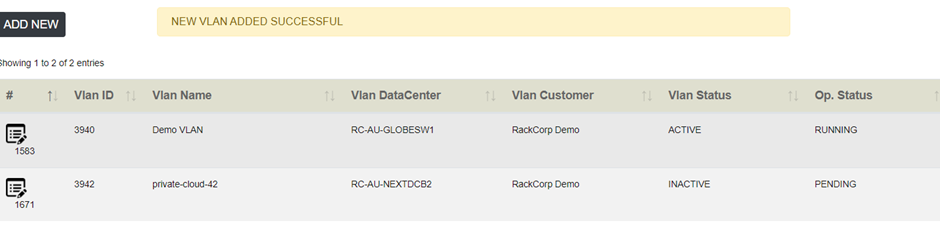
<p class="callout success">You now have a newly defined Private VLAN and IP subnet.</p>

![](https://wiki.rackcorp.com/uploads/images/gallery/2023-08/JeahYKhFi54ePprT-embedded-image-uarqyfeb.png)

Next, we assign these newly created resources to a virtual machine.

---

### Adding Virtual NICs to Virtual Machines

Select your VM from the SERVICES-&gt; SERVERS list in your RackCorp Portal Account. Click on the NETWORK tab.

[![image.png](https://wiki.rackcorp.com/uploads/images/gallery/2023-08/scaled-1680-/EQPW6We0qprZkC4g-image.png)](https://wiki.rackcorp.com/uploads/images/gallery/2023-08/EQPW6We0qprZkC4g-image.png)
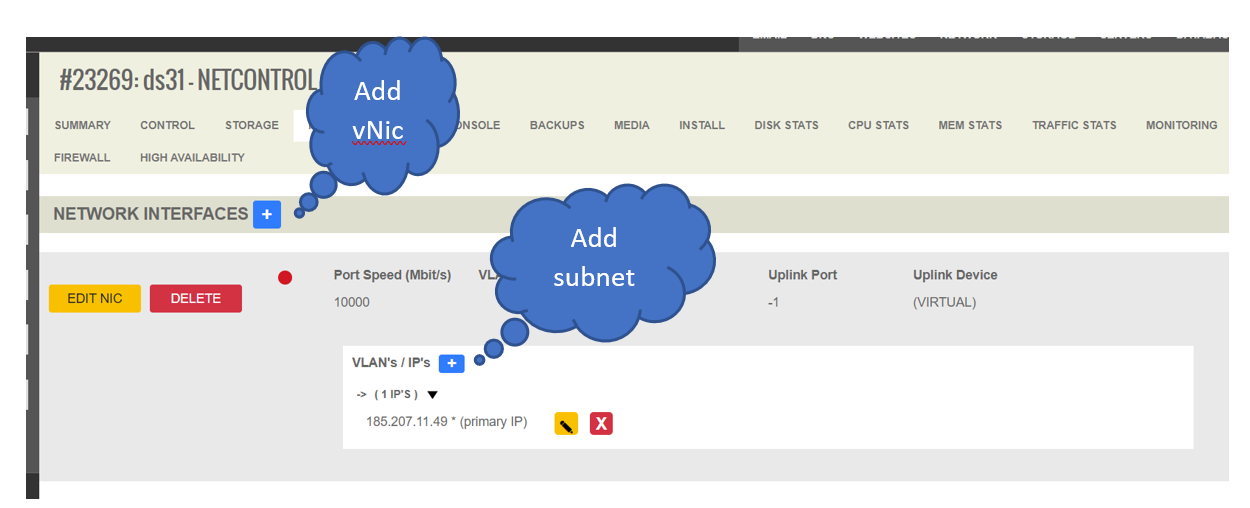
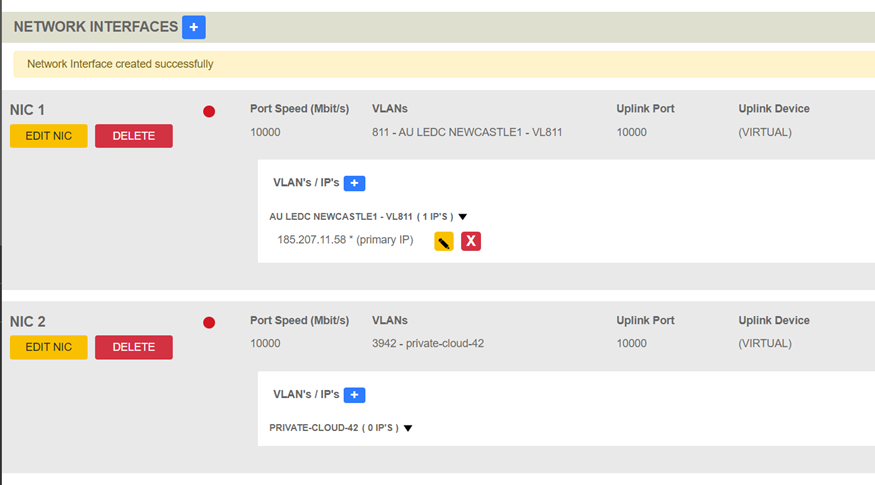
For this example demonstration we will add a 2<sup>nd</sup> private vNIC to the default configuration, preserving NIC1 which is the default PUBLIC vNIC that was configured when ordering the virtual machine.

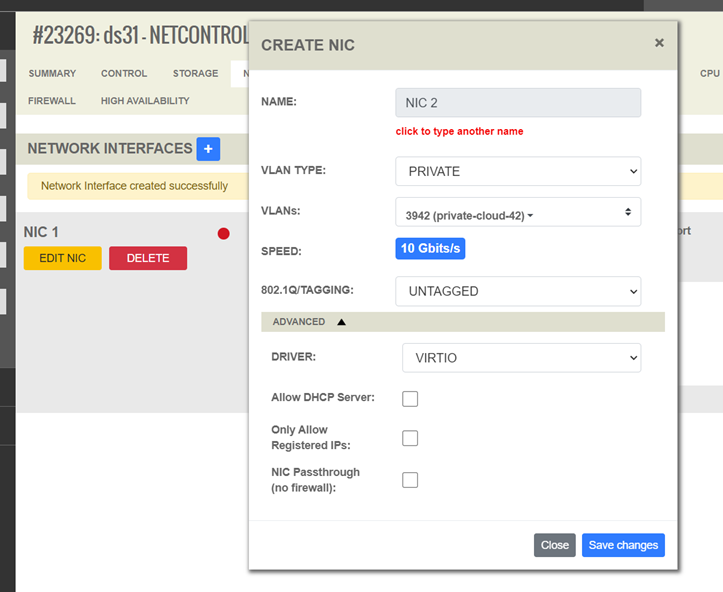
1\. Add a new PRIVATE NIC and select the desired VLAN and tagged/untagged.

2\. <span style="font-size: 11.0pt; line-height: 107%; font-family: 'Calibri',sans-serif; mso-ascii-theme-font: minor-latin; mso-fareast-font-family: Calibri; mso-fareast-theme-font: minor-latin; mso-hansi-theme-font: minor-latin; mso-bidi-font-family: 'Times New Roman'; mso-bidi-theme-font: minor-bidi; mso-ansi-language: EN-AU; mso-fareast-language: EN-US; mso-bidi-language: AR-SA;">Review any advanced settings, leave as default if unsure:</span>

<span style="font-family: Symbol; mso-fareast-font-family: Symbol; mso-bidi-font-family: Symbol;"><span style="mso-list: Ignore;">·<span style="font: 7.0pt 'Times New Roman';"> </span></span></span>DRIVER - Our vNIC are configured to use the RedHat virtio paravirtual driver by default. If you are using an older operating system you may select Intel E1000

<span style="font-family: Symbol; mso-fareast-font-family: Symbol; mso-bidi-font-family: Symbol;"><span style="mso-list: Ignore;">·<span style="font: 7.0pt 'Times New Roman';"> </span></span></span>ALLOW DHCP SERVER – select if this NIC will be running a DHCP server

<span style="font-family: Symbol; mso-fareast-font-family: Symbol; mso-bidi-font-family: Symbol;"><span style="mso-list: Ignore;">·<span style="font: 7.0pt 'Times New Roman';"> </span></span></span>ONLY ALLOW REGISTERED IPs - If selected, traffic leaving this server from IPs other than that registered in the portal will be blocked.<span style="mso-spacerun: yes;"> </span>NOTE: firewalls and routers will regularly pass such traffic so you should leave this unticked for such devices.

<span style="font-family: Symbol; mso-fareast-font-family: Symbol; mso-bidi-font-family: Symbol;"><span style="mso-list: Ignore;">·<span style="font: 7.0pt 'Times New Roman';"> </span></span></span>NIC PASSTHROUGH - allows all traffic to pass through the NIC and disables stateful tracking of traffic
![](https://wiki.rackcorp.com/uploads/images/gallery/2023-08/qZKCOMZvMNw6qGPe-embedded-image-loc93wqu.png)![](https://wiki.rackcorp.com/uploads/images/gallery/2023-08/ADIsW0iXXH44B8Kg-embedded-image-t3uhnhxs.png)

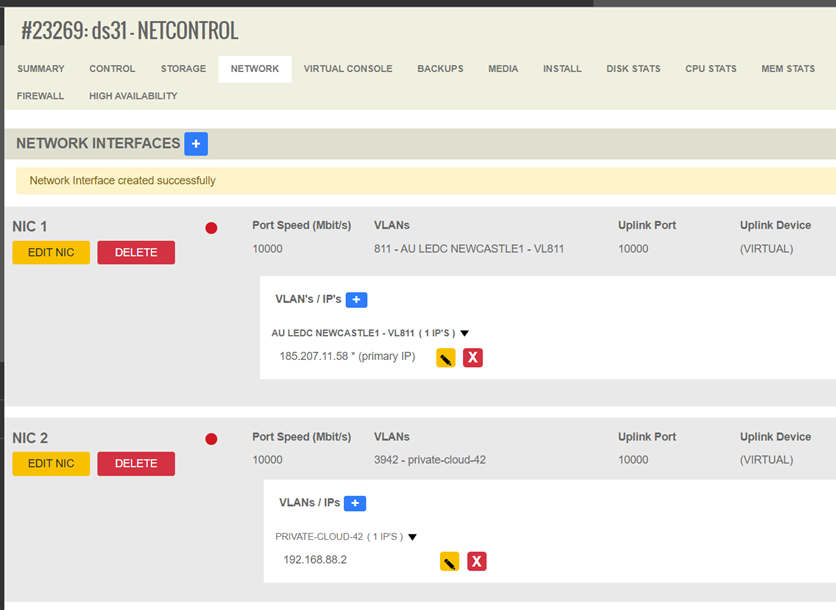
<span style="font-size: 11.0pt; line-height: 107%; font-family: 'Calibri',sans-serif; mso-ascii-theme-font: minor-latin; mso-fareast-font-family: Calibri; mso-fareast-theme-font: minor-latin; mso-hansi-theme-font: minor-latin; mso-bidi-font-family: 'Times New Roman'; mso-bidi-theme-font: minor-bidi; mso-ansi-language: EN-AU; mso-fareast-language: EN-US; mso-bidi-language: AR-SA;">3. The new vNIC has been created successfully. Next, add the particular subnet to the vNIC</span>

<span style="font-size: 11.0pt; line-height: 107%; font-family: 'Calibri',sans-serif; mso-ascii-theme-font: minor-latin; mso-fareast-font-family: Calibri; mso-fareast-theme-font: minor-latin; mso-hansi-theme-font: minor-latin; mso-bidi-font-family: 'Times New Roman'; mso-bidi-theme-font: minor-bidi; mso-ansi-language: EN-AU; mso-fareast-language: EN-US; mso-bidi-language: AR-SA;">![](https://wiki.rackcorp.com/uploads/images/gallery/2023-08/dFBhEkGPCAOECc80-embedded-image-gtwpmlu8.png)</span>

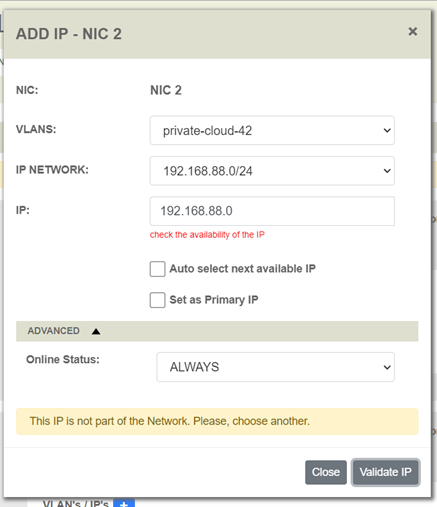
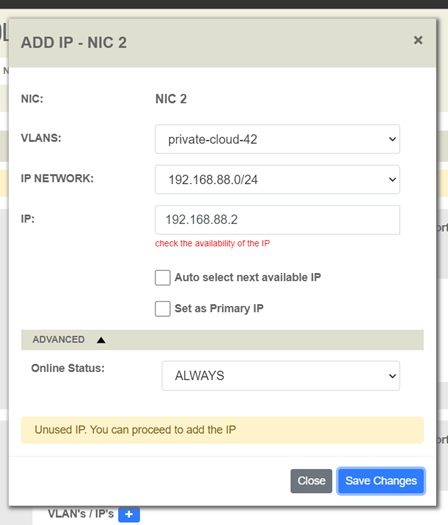
Upon selection of your new VLAN, the associated subnet is pre-populated. Enter your desired host IP address for the 2<sup>nd</sup> vNIC under IP or use auto select, then press VALAIDATE IP to check your configuration.
![](https://wiki.rackcorp.com/uploads/images/gallery/2023-08/FNTYD8qfPYJHl7HO-embedded-image-kpwgcf6d.png)

![](https://wiki.rackcorp.com/uploads/images/gallery/2023-08/wrxzEYjsIl3Qy6aY-embedded-image-m8zlgmyd.png)

### Further Reading

See our OPNSENSE firewall setup guide for further examples on how to use virtual NICs and VLANs with RackCorp Hybrid Cloud  
  
[https://wiki.rackcorp.com/books/help-and-support-en/page/install-opnsense-firewall](https://wiki.rackcorp.com/books/help-and-support-en/page/install-opnsense-firewall-in-the-cloud)